
 Written by : Nick
17-05-2026
Written by : Nick
17-05-2026
How to Configure an Akuvox R20K Intercom for Multiple Homes Behind One Gate
Why the Akuvox R20K Community Intercom Is a Popular Choice
The Akuvox R20K Community Intercom is one of the best solutions for multiple homes behind one gate. It allows different families to receive separate calls from a single intercom system. In this guide, we explain how to configure the Akuvox R20K Community Intercom using SIP numbers and dial plans.
One of the most proven systems for this purpose is the Akuvox R20K intercom. The R20K has earned a strong reputation because of its reliability and flexibility. Many intercom systems look impressive at first. Unfortunately, some models struggle with unstable applications, poor audio quality, or difficult programming.
In contrast, the Akuvox R20K has been tested in real residential installations for years. Consequently, many installers consider it one of the most dependable solutions for automatic gates and shared driveways.
Different Versions of the Akuvox R20K
The Akuvox R20K is available in several versions. Therefore, it can suit different properties and installation conditions.
The most common model uses a standard CAT5 network cable. This option is ideal when network wiring already exists or can be installed easily. In addition, Akuvox also offers a two-wire version. That version works well for older properties where replacing existing cables would be difficult or expensive.
Another practical option is the 4G SIM card version. This model works especially well for rural properties or long driveways without stable internet infrastructure. Instead of relying on a local network, the intercom uses a mobile connection. As a result, the system can still provide remote communication and access control in isolated locations.
Power and Connection Options
Power options are also flexible. The R20K can connect through a PoE switch using a single CAT5 cable. In this configuration, one cable provides both data and power. Therefore, installation becomes cleaner and simpler.
Alternatively, the intercom can connect to a WiFi router wirelessly while receiving separate 12V DC power directly at the unit. This approach is useful when running network cables is not practical.
The intercom itself includes a built-in keypad. This feature allows residents to enter access codes directly at the gate. Consequently, family members, cleaners, gardeners, or delivery drivers can enter without using remotes.
Temporary access codes can also be created for contractors or guests. Because of this, convenience improves while maintaining security.
Smartphone Apps and Indoor Screens
The Akuvox R20K can operate as a standalone smart intercom. In this mode, calls go directly to smartphone applications. Residents can answer calls from anywhere with internet access.
For example, a homeowner can open the gate remotely while working, shopping, or travelling overseas. As a result, parcel deliveries and guest access become much easier to manage.
At the same time, the system can also work with indoor monitors installed inside the house. Some families prefer physical touchscreens instead of smartphone applications. Fortunately, Akuvox supports both options simultaneously.
Therefore, one resident may use a mobile app while another prefers a wall-mounted indoor screen.
The Challenge of Multiple Homes Behind One Gate
Shared properties create additional challenges. For example, one driveway may serve three separate homes occupied by different families. In this situation, a standard single-button intercom becomes impractical.
Visitors need a simple and clear way to contact the correct house. Otherwise, residents receive unwanted calls and unnecessary interruptions.
Fortunately, the Akuvox R20K handles these situations extremely well using the Community Intercom feature.
How the Akuvox R20K Community Intercom Works
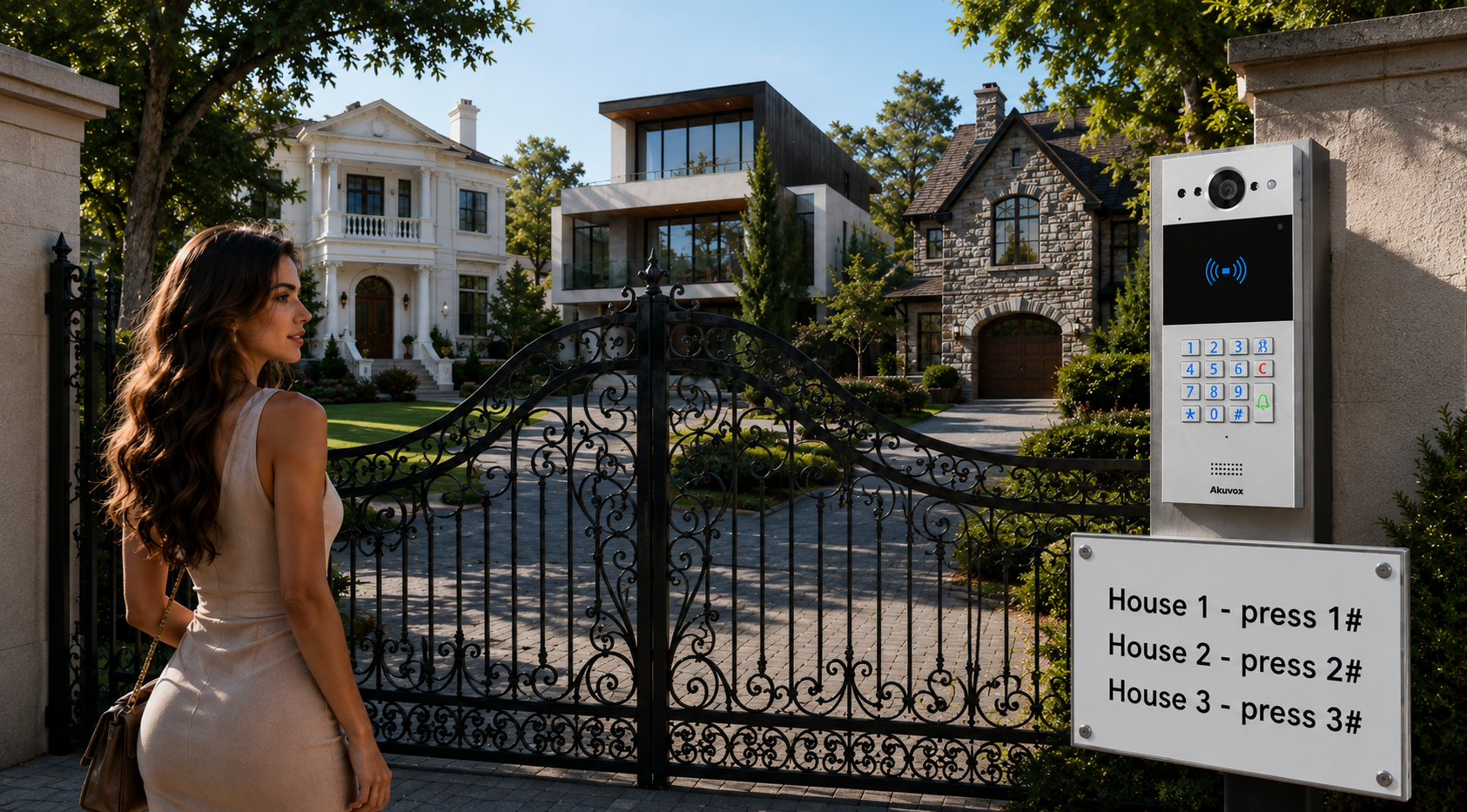
This setup allows the keypad to call different houses directly. For example:
- Press 1# → calls House 1
- Press 2# → calls House 2
- Press 3# → calls House 3
This configuration is simple for visitors and very convenient for residents. More importantly, each family receives only their own calls and maintains full privacy.
Creating an Akuvox R20K Community Intercom Site
To configure this system, first create a Community Site inside the Akuvox management platform.
Inside the Public Area section, add the intercom unit itself.
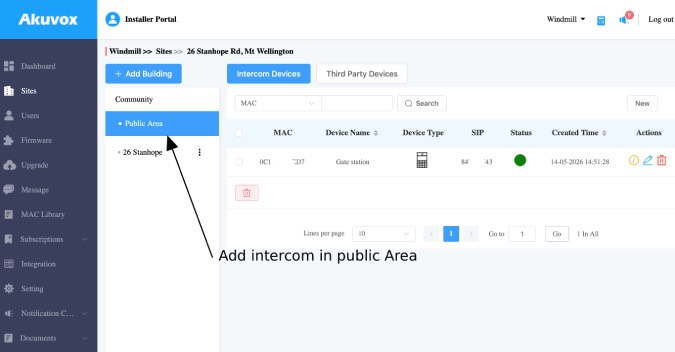
After that, click “+ Add Building” and create the required buildings or house sites for the property.
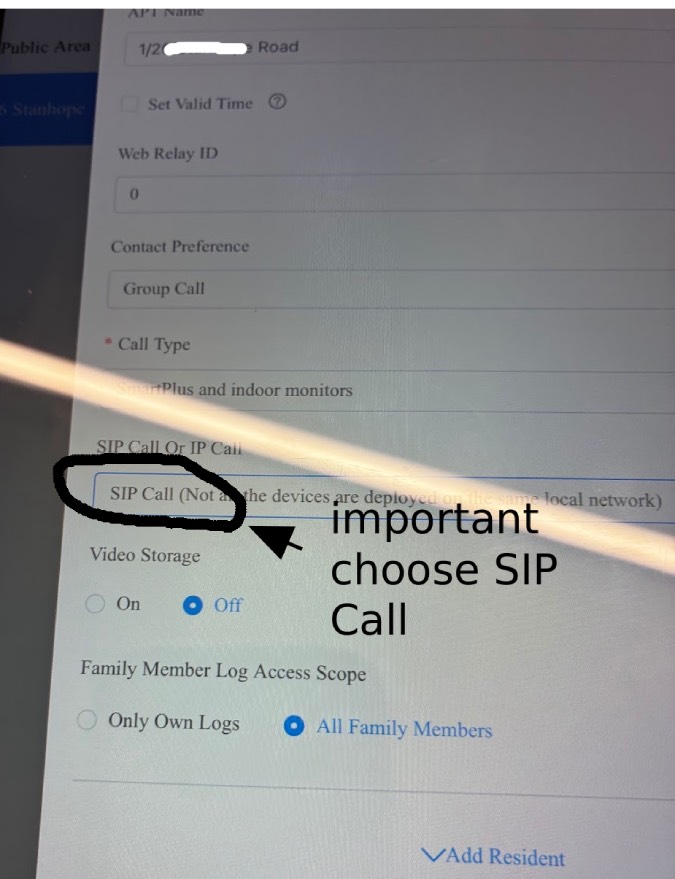
Next, add the apartments or homes belonging to each family. It is also important to configure SIP Call settings correctly for every site. Otherwise, the intercom will not know where to send the calls.
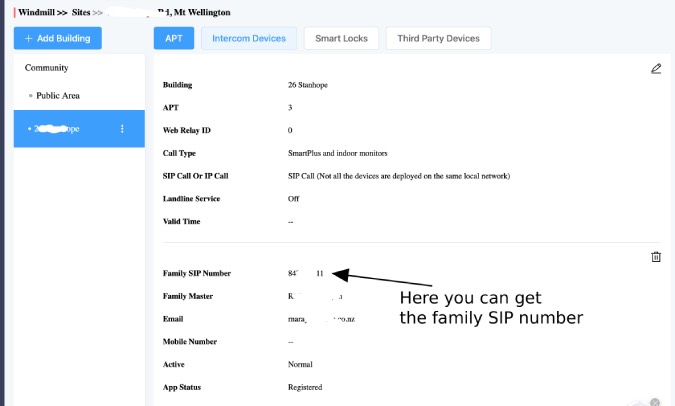
Once the setup is complete, every family will receive its own SIP number. These SIP numbers are essential for the next stage of programming. Therefore, it is a good idea to copy them into a document or write them down carefully for future reference.
Configuring the Dial Plan
After the Community Site is configured, log directly into the Akuvox R20K web interface. Then go to:
Intercom → Dial Plan
Inside this section, press “Add” to create a new dial rule.
In the Rules Modify section, enter a name for the rule. The name can be anything simple and descriptive. For example:
- House 1
- House 2
- Main House
- Cottage
The next step is configuring the Prefix field. The prefix is the number visitors will dial at the keypad to call a specific home. Usually, this can simply be the house number itself. For example:
- Prefix 1 → House 1
- Prefix 2 → House 2
- Prefix 3 → House 3
After that, in Place 1, enter the SIP number of the house saved earlier during the Community Site setup. This SIP number tells the intercom exactly where the call should be routed.
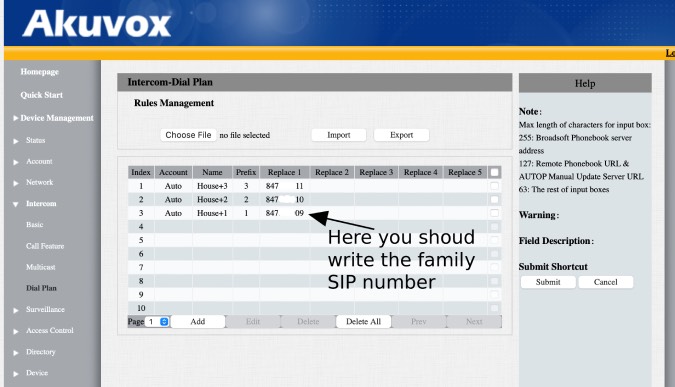
Finally, make sure all settings are saved correctly before exiting the menu. Otherwise, the dial plan rules and SIP destinations may not work after rebooting the system.
Why This Setup Works So Well
Once programming is completed, visitors simply type the required number followed by the hash key. The intercom then routes the call automatically to the correct household.
As a result, the entire system feels professional, organized, and very easy to use.
This type of setup works particularly well for shared lifestyle properties, subdivisions, rural estates, and multi-generational family homes. Instead of installing several separate intercom systems, one Akuvox R20K can manage multiple homes efficiently from a single entrance point.
Another important advantage is scalability. Properties often change over time. For example, owners may build additional dwellings or convert garages into rental units. In many cases, the Akuvox system can expand without replacing the entire installation.
Professional Assistance and Support
The Akuvox R20K remains one of the most reliable and versatile gate intercom systems available today. It supports CAT5, two-wire, and 4G configurations. In addition, it can use PoE power or separate 12V supply.
The system works with smartphone applications, indoor monitors, or both together. Most importantly, the Community Intercom feature provides an elegant solution for properties containing multiple homes behind one gate.
If you experience any difficulties during setup or programming, it is recommended to contact Sesame Gate Automation for professional assistance, installation, and troubleshooting support.
Learn how to configure an Akuvox R20K Community Intercom for multiple homes behind one gate using SIP numbers and dial plans.